影片片段
影片片段可在序列中播放影片文件中的视频内容。此外,还可根据影片的音频流创建一个或多个声音片段。
影片片段直接引用原始媒体文件而非将其嵌入 blend 文件中,因此在外部编辑或编码软件中所做的修改只需重新加载文件即可体现。
要添加影片片段,请选择 ,并在文件浏览器中选择一个或多个影片文件。
若影片包含多个视频或音频流,Blender 会将每个流分别作为独立的片段导入。这些片段会自动同步,以匹配影片文件中存储的时间信息,包括各视频流之间的任何延迟。
Note
剪辑可以是巨大的
三分钟的 QuickTime .mov 文件可能有 140MB.加载它时,即使通过高速 LAN 也需要一些时间。如果你的电脑或 Blender 一段时间没有反应,不要以为电脑或 Blender 已经锁定。
Tip
影片片段可以通过启用缩略图叠加层,在序列器中显示叠加在其片段上的缩略图。
添加影片片段
参考
- 菜单:
- 移动片段
添加后随即使用鼠标在时间线上定位片段。若启用此选项,起始帧和通道属性将不显示。
- 起始帧
起始帧用于放置片段左侧控制柄。
- 通道
通道用于放置片段。
- 相对路径
存储图像文档相对于 blend 文档的位置。
- 替换选择
将当前选定的片段替换为新片段。
- 匹配方法
确定如何缩放纵横比与场景的 分辨率 不同的图像以适合渲染区域。
- 缩放至适配:
Adjusts the strips Scale Transforms so the visual contents of the strip to fit exactly within the project's Resolution while maintaining the original aspect ratio.
这可能意味着可以沿内容的边框添加透明区域,以适合呈现区域中的内容。
- 缩放至填充:
Adjusts the strips Scale Transforms so the visual contents of the strip to span the project's Resolution while maintaining the original aspect ratio.
这可能意味着原始图像的某些部分不再适合渲染区域内的内容。
- 拉伸至填充:
Adjusts the strips Scale Transforms so the visual contents of the strip to fill the project's Resolution. Note, unlike the other two methods described above, Stretch to Fill does not maintaining the original aspect ratio.
这可能意味着原始图像会失真以适合渲染区域内的内容。
- 设置视图变换
根据导入媒体的色彩空间自动设置适当的视图转换。在大多数情况下,应使用 标准;使用错误的变换可能会导致颜色不准确或渲染性能下降。
- 调整播放速率
自动调整视频播放速度,使其以原始速度播放,无论场景帧率如何。
- 声音
将影片的音频流导入为声音片段。
当影片包含多个音频流时,系统会为每个音频流分别生成一条声音片段。
- 设置场景帧率
将场景帧速率设置为影片文档中编码的帧速率。
例子
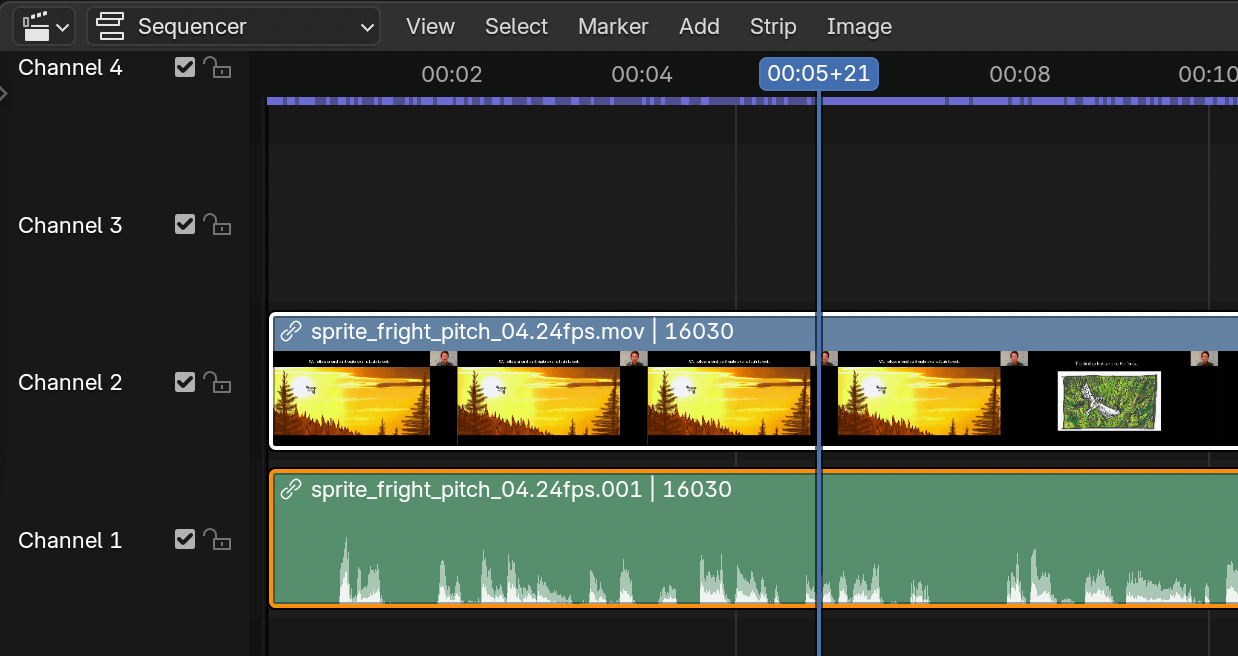
导入的影片片段,下面有音轨。
在片段本身里,你可以看到片段名称,源文件的路径和片段长度。