导航
与大多数编辑器一样,您可以:
通过拖动 鼠标中键 垂直(通道)和水平(时间)平移视图。
通过 滚轮 或者拖动 Ctrl-鼠标中键 来放大或缩小(拉近或推远)。
您也可以使用滚动条来实现此功能。
视图菜单
- 框显所选 数字键盘句号.
平移并缩放视图,以聚焦于选定的关键帧。
- 框显全部 Home
平移并缩放视图,以显示所有关键帧。
- 框显场景/预览范围
将水平视图重置为当前场景范围,如果预览范围处于活动状态,则将其考虑在内。
- 转到当前帧 数字键盘0
平移视图,使播放头位于中心位置。
- 多字匹配查找
Lets you filter by multiple search terms instead of just one (in the search textbox above the channel list and in the Filters popover). The terms are space-separated, so you can for example type "loc rot" to find all channels that have "loc" or "rot" in their name. If this option were disabled, the list would only show channels containing the text "loc rot", of which there are likely none.
- 实时更新
Whether to update other views (such as the 3D Viewport) while you're moving keyframes around. If disabled, the other views only get updated once you finish the move.
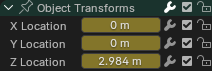
滑块.
- 显示滑块
Shows a value slider next to each channel. Adjusting such a slider automatically creates a keyframe.
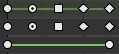
控制柄类型。
- 显示控制柄与插值
Displays keyframes using shapes that represent their Bézier handle type. In addition, if a keyframe uses a non-default interpolation type for the curve segment that comes after it, this is indicated by a green line.
请参阅 控制柄 & 插值显示。
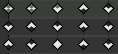
极端标记。
- 显示曲线极点
Detects keys where the curve changes direction, and marks them by displaying an arrow inside their shape. Local maxima (hills) are shown as up arrows, while local minima (valleys) are shown as down arrows.
A keyframe may show both arrows, namely when it's part of a summary row containing a channel with a maximum and one with a minimum.
- 自动合并关键帧
自动合并变换后出现在同一帧上的关键帧。
- 显示标记
显示标记区域(前提是已定义了任意标记)。禁用后,标记菜单也将隐藏,且标记操作在编辑器中不再可用。
- 使用时间码 Ctrl-T
以秒显示时间而不是以帧显示。
- 同步可见范围
将编辑器的水平平移和缩放比例与其他启用了此选项的时间线编辑器同步。这样,它们始终显示相同的时间段。
- 设置预览范围 P
Lets you drag a box to define a time range for previewing. As long as this range is active, playback will be limited to it, letting you repeatedly view a segment of the animation without having to manually rewind each time.
可以使用时间线编辑器的回放弹窗中的相应按钮来更改起始帧或结束帧。或者,也可以再次运行 设置预览范围。
- 清除预览范围 Alt-P
清除预览范围。
- 设置被选的预览范围 Ctrl-Alt-P
应用一个包含所选关键帧的预览范围。
- 切换曲线编辑器 Ctrl-Tab
更改区域的编辑器到曲线编辑器。
- 缓存
要在时间轴上显示的模拟的缓存。
烘焙的模拟将显示为完全不透明,缓存的模拟将显示为略微透明,无效的缓存将显示为略微透明并带有深色斜线条纹。
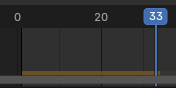
时间线缓存。
- 面光
区域控制,详见用户界面文档以获取更多信息。
过滤器
这些过滤器在标题栏的漏斗下拉按钮中可用。
- 汇总
Toggles the "Summary" row at the top of the Channels region. This row shows the union of all keyframes across all channels.
- 仅显示已选中
Only show keyframes belonging to objects/bones/... that are selected.
Note
If this option is enabled, the Dope Sheet may not show all material keyframes of the selected objects. Instead, it only shows the keyframes belonging to the selected nodes in the 着色器编辑器.
- 显示隐藏项
Show keyframes from objects/bones/... that are hidden.
- 仅显示错误信息
Only show channels that have errors (for example, because they try to animate a property that doesn't exist on the object).
- 搜索
Filters the channel list by a search term (or multiple search terms if Multi-Word Match Search is enabled).
- 过滤集合
Select a collection to only show keyframes from objects in that collection.
- 按类型过滤
按属性类型过滤曲线。
- 数据块排序
Sorts data-blocks alphabetically to make them easier to find.
If your playback speed suffers because of this (should only really be an issue when working with lots of objects), you can turn it off.
回放控制
The Playback Controls region contains controls and options related to playback, keying, auto keyframing, and transport.
这些设置可让您:
控制动画的预览方式及与音频的同步效果。
通过插帧集和自动插帧功能插入并管理关键帧。
Navigate the timeline using playback and transport controls.
调整帧范围并预览动画的特定片段。
See also
如需详细了解底栏中常见的所有属性与控件,请参阅回放控制文档。