填充工具
参考
- 模式:
绘制模式
- 工具:
The Fill tool creates filled Grease Pencil strokes by detecting enclosed regions formed by existing strokes.
Depending on the selected Fill Solver, the boundary can be computed from the stroke geometry or from a pixel-based representation, allowing fills to work with both clean line art and more complex drawings.
The Fill tool uses any of the Grease Pencil Fill draw mode brushes. Activating a brush from an asset shelf or brush selector also activates this tool for convenience.
工具设置
笔刷资产
The asset selector can be used to open a pop-up asset browser to select the active brush asset for the tool.
可参阅资产操作获取更多信息。
笔刷设置
You can also configure the brush's main settings exposed in the Tool Settings for convenience.
- 方向 Ctrl
Determines which side of the detected boundary is filled.
- 法向:
Fill the enclosed region under the cursor.
- 反相:
Fill the region outside the detected boundary. This is useful for filling the background around a drawing.
- 尺寸 德洛内
Maximum distance used to search for an enclosed region around the cursor.
- 精度 像素
Controls the accuracy of the pixel-based boundary detection.
Higher values produce more accurate fills at the cost of increase computation time.
- 膨胀/收缩 像素
Expand or shrink the detected fill region relative to the boundary strokes.
- 宽度 像素
Thickness of the boundary strokes used by the Pixel fill solver.
高级
- 填充解算器
Method used to detect the fill region.
- 德洛内:
Uses the stroke geometry directly to compute enclosed regions. Produces accurate fills that are independent of viewport resolution.
- 像素:
Rasterizes the strokes and performs a flood fill. Useful for sketches or drawings where geometric boundaries are less reliable.
- 尺寸单位 德洛内
控制笔刷 尺寸 的测量方式。
- 视图:
Measure the brush Size in screen space.
- 场景:
Measure the brush Size in scene units.
The brush size remains constant regardless of the viewport zoom level. The unit system is configured in the Scene Units.
- 边界
Determines which strokes are considered when detecting fill boundaries.
- 全部:
Use both strokes and fill guide strokes.
- 笔画:
Use only strokes.
- 编辑线条:
Use only fill guide strokes.
- / 显示线型
Display the auxiliary lines used to compute the fill boundary.
- 层
Determines which Layers contribute to the fill boundary.
- 可见:
Calculate boundaries using all visible layers.
- 活动:
Calculate boundaries using only the active layer.
- 上一层:
Calculate boundaries using the layer above the active layer.
- 下一层:
Calculate boundaries using the layer below the active layer.
- 上方全部:
Calculate boundaries using all layers above the active layer.
- 下方全部:
Calculate boundaries using all layers below the active layer.
- 简化 像素
Reduce the complexity of the detected boundary before filling.
Higher values improve performance but may reduce the accuracy of the filled region.
- 忽略透明
Ignore strokes whose material opacity falls below the specified threshold when calculating fill boundaries.
The slider controls the opacity threshold used to consider a material transparent.
- 限于视图 像素
Fill only regions visible in the viewport.
- 自动移除填充引导线
Automatically remove manually created fill guide strokes after creating a fill.
间隙闭合
Gap closure generates temporary helper lines to automatically close small gaps between strokes, allowing open regions to be filled.
- 内部间隙
Stop helper lines at internal gaps.
- 检测系数
Controls the sensitivity of gap detection.
Higher values detect more gaps, which can result in smaller fill regions.
- 尺寸 像素
Maximum distance used by the selected gap closure method when creating temporary helper lines.
- 模式 S 像素
Method used to generate temporary helper lines.
- 半径:
Connect nearby open stroke endpoints that fall within the specified radius.
- 扩选:
Extend open stroke ends until they intersect another stroke or reach the specified distance.
- 视觉辅助 像素
Display the temporary helper lines used for gap closure.
- 笔画碰撞 D 像素
Stop extending helper lines when they intersect an existing stroke.
用法
选择笔刷和材质
在工具设置中选择笔刷、材质和颜色类型来使用该工具。填充工具使用 填充笔刷 类型。更多信息见笔刷设置。
填充区域
在闭合笔画区域中点击 鼠标左键。工具会自动计算边界,并使用所选的材质创建一个闭合的笔画。

填充引导
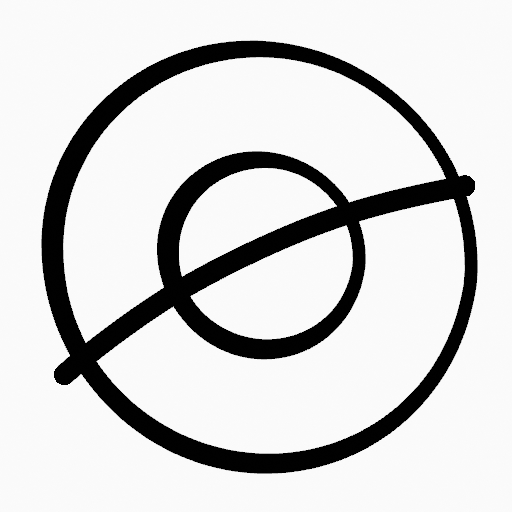
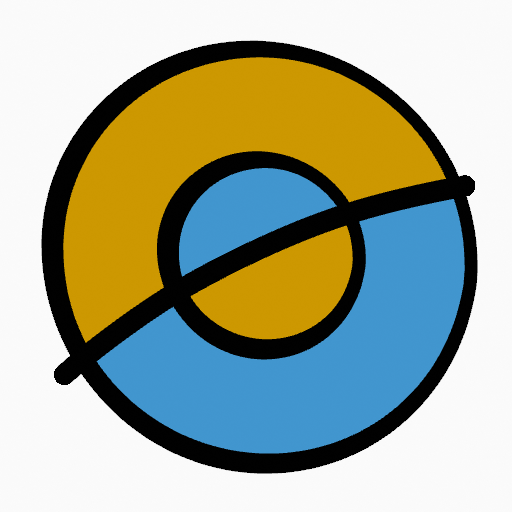
If you have a large gap in an area that you want fill, you can add fill guides manually, a temporary auxiliary lines for closing open shapes. To create a fill guide stroke use Alt-LMB and draw a line to close the desired area.
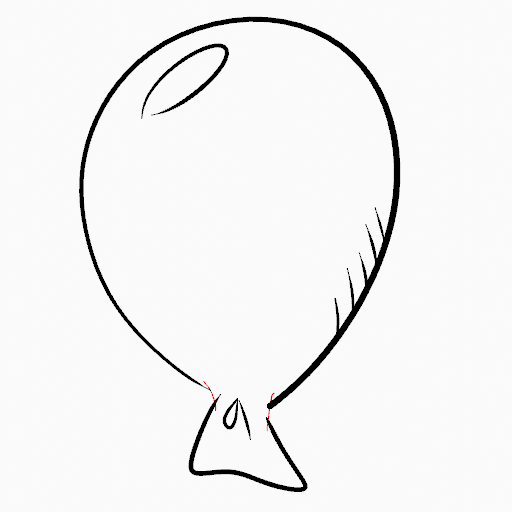

When you are satisfied with the fill result you can delete the fill guide using the Clean Up tool in the Grease Pencil Menu in Edit Mode.
自动间隙闭合
A more automatic way to close gaps in an area that you want fill is using temporarily helper lines. There are two method to use "Radius" or "Extend"
Radius use temporary auxiliary lines calculated from the radius of nearby open points to close open shapes. Set the size more than zero to control the circle size over opened points (the circle will disappear when the line close the gap). Click over the area you want to be filled and change the length of the strokes using PageUp PageDown or Wheel. When you are satisfied with the length and you are sure the temporarily strokes cross each other, click again to fill the area.

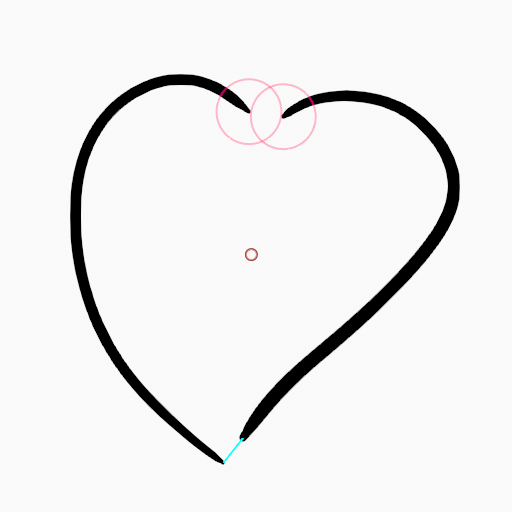

Extend use temporary auxiliary lines extending the actual strokes ends for closing open shapes. Set the size more than zero to use the extended lines, click over the area you want to be filled and change the length of the strokes using PageUp/PageDown, Wheel or a pen's MMB. When you are satisfied with the length and you are sure the temporarily strokes cross each other, click again to fill the area.