侧栏
可以使用菜单项 或快捷方式 N 来切换侧栏。
下图显示两段视频序列,一个处于预览模式,另一个处于序列模式,两者均保持侧栏开启状态。
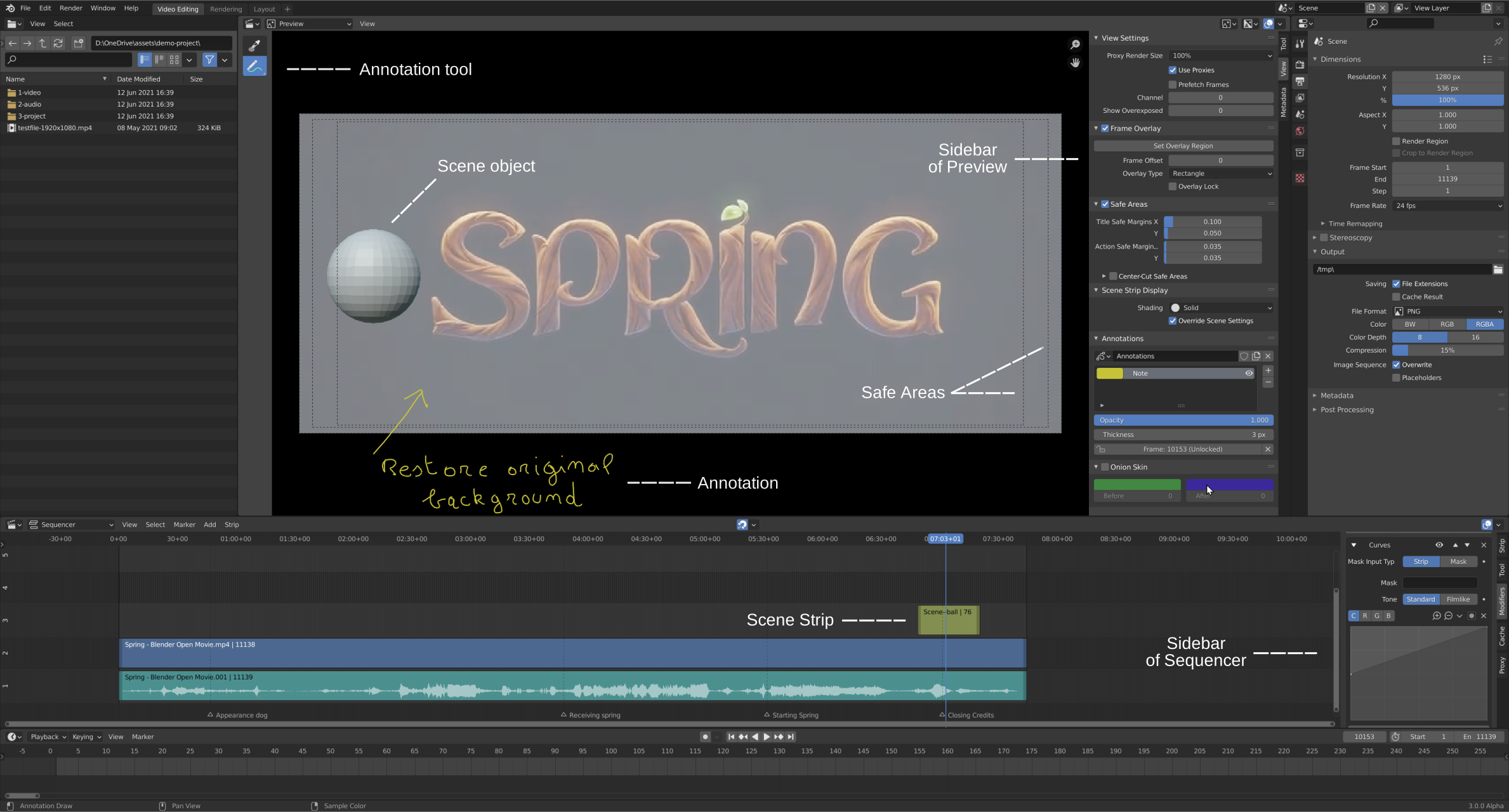
工具
参考
- 编辑器:
视频序列编辑器
- 视图类型:
预览
- 面板:
针对活动工具的设置。
- 拖拽
What to do when dragging LMB on a place other than the tool's gizmo.
- 活动工具
Perform the same action as when dragging the gizmo.
- 调整
移动图像到鼠标光标下。
- 框选
拖动一个选择矩形,然后选择部分或全部位于其中的所有图像。
视图
视图设置
参考
- 编辑器:
视频序列编辑器
- 视图类型:
预览
- 面板:
- 代理渲染尺寸
Controls the preview resolution. Lower values have worse detail but better performance.
- 无显示:
完全禁用预览。
- 场景尺寸:
Preview at the full resolution without using proxies.
- 25%, 50%, 75%, 100%:
Preview at a downscaled resolution, optionally using proxies (see below). Even selecting 100% can give a performance benefit due to the reduced image quality and corresponding smaller file size.
- 使用代理
Enable the use of proxies, which are copies of original footage stored at a lower resolution and/or quality for better preview performance.
Proxies can be configured in the Proxy tab of the Sidebar, which is however only visible in the Sequencer and Sequencer & Preview modes.
- 通道
Setting this to 0 shows all channels. Setting it to something higher will only show the channels up to and including that number.
- 显示曝光过度
Highlight overexposed (bright white) areas using a zebra pattern. The threshold can be adjusted with the slider.
- 显示丢失的媒体
Render missing images/movies with a solid magenta color. When disabled, missing content will render fully transparent.
Tip
Strips with missing content will be displayed as red in the timeline.
2D 游标
参考
- 编辑器:
视频序列编辑器
- 视图类型:
预览
- 面板:
The 2D Cursor is the white-red circle with a crosshair that is shown in the preview region (provided that the 2D Cursor overlay is enabled). It can be used as a Pivot Point for rotating and scaling images.
- 位置 X、Y
2D 游标相对于视频中心的位置。边缘相距 0.5,因此 (0.5, 0.5) 将是右上角。
The 2D Cursor's location can also be set with the Cursor tool or by dragging with Shift-RMB.
帧叠加
参考
- 编辑器:
视频序列编辑器
- 视图类型:
预览
- 面板:
The Frame Overlay lets you display a reference frame for comparing to the current frame.
- 设置重叠区域
Lets you drag a rectangle to define the bounds of the overlay. Instead of clicking this button, you can also press O while hovering over the preview.
- 帧偏移
The time offset between the reference frame and the current frame, in frames.
- 叠加类型
How the reference frame should be displayed.
- 矩形:
Display part of the reference frame (defined by the Overlay Region) on top of the current frame.
- 参考:
仅显示参考帧。
- 当前:
仅显示当前帧。
Tip
Each Video Sequencer editor can have its own Overlay Type. This means you can open two of them for showing the current frame and the reference frame next to each other.
- 叠加锁定
Keep displaying the same reference frame, even when moving to a different time point. This works by automatically adjusting the Frame Offset.
安全区
参考
- 编辑器:
视频序列编辑器
- 视图类型:
预览
- 面板:
显示辅助线,标明所有屏幕上均可看到内容的视频区域。
See also
构图辅助线
构图辅助线 可在预览窗口上显示辅助线,有助于构图。
- 九宫分割
添加垂直和水平分隔三分之一帧的线条。
- 中心 -- 中心
添加将框架垂直和水平分成两半的线条。
- 中心 -- 斜向
添加连接对角的线条。
- 黄金分割 -- 比率
将画面宽度与高度按黄金比例分割(即取画面四周边长的约 0.618 倍)。
- 黄金分割 -- 三角形 A
显示从左下角到右上角的对角线,然后添加穿过左上角和右下角的垂直线。
- 黄金分割 -- 三角形 B
与A相同,但有相反的角落。
- 均衡 -- 三角形 A
显示从左下角到右上角的对角线,然后是从左上角和右下角的线到0.618相对侧的长度。
- 均衡 -- 三角形 B
与A相同,但有相反的角落。
- 颜色
设置所有合成辅助层的显示颜色和透明度(alpha)值。可根据底层画面的亮度或对比度调整可见度。
场景片段显示
参考
- 编辑器:
视频序列编辑器
- 视图类型:
预览
- 面板:
控制场景片段在预览中的显示方式。
- 着色
要使用的着色模式。
- 重写场景设置
Use the Workbench render settings from the current scene rather than the scenes referenced by the strips. Only available for the Wireframe and Solid shading modes.
标注
参考
- 编辑器:
视频序列编辑器
- 视图类型:
预览
- 面板:
在序列编辑器中管理标注。
元数据
参考
- 编辑器:
视频序列编辑器
- 视图类型:
预览
- 面板:
Lists information that has been encoded in the currently visible movie or image file (not the file referenced by the selected strip). This can include the filename, the creation date, the camera model etc. This also works for images produced by Blender; see Render Output for the metadata that can be included in this case.
Other graphics programs may also store metadata, but only the text in the header field "Comments" can be read.
某些元数据也可以使用元数据叠加层在预览中可见。
Tip
元数据无法在 Blender 内编辑,可以使用 Exiftool 等外部程序。例如,更改 "Comments" 字段的命令是:
exiftool --comments="My new comment" name-of-file.png
Note
元数据仅显示在未应用效果的图像/影片中。